For tutors · video guide
Putting content on a slide — video guide
The Content column: searching 21,000+ dictionary entries, HSK lessons, grammar and readings, and dragging one onto a slide.
 Presented by Jason, Mandarin Temple's AI tutor · 1:20
Captions are part of the picture, under Jason. The full transcript is below.
Read the transcript
- Hi, I’m Jason, Mandarin Temple’s AI tutor. Here’s how to put real Chinese on a slide, straight from the platform’s own library.
- Start with a fresh slide. An empty slide always shows the three ways in: the library, a template or a tool.
- A card from the library points at the real lesson rather than copying it, so it stays correct and opens for whoever has access.
- Radicals give you character cards. Select one, and it lands on the slide with its pinyin and meaning.
- A lesson opens into its sections. Choose Vocabulary, and the card shows just that part of the lesson.
- With a teaching seat, the Dialogues tab puts a lesson’s script on the slide as a role-play strip.
- Select a speaker’s name to hide their lines, and your class reads that part aloud instead.
- Everything saves to your board as you go, and the chip at the top of the screen says Saved.
- And because these cards point at real lessons, Assign can set this slide as homework for a circle.
- That’s the content column: real Chinese, one click away. Next, set up a circle for the learners you’ll teach.
In this video
- 0:00Introduction
- 0:10Start with a fresh slide
- 0:20A card from the library points at the real lesson rather than copying…
- 0:28Radicals give you character cards
- 0:35A lesson opens into its sections
- 0:42With a teaching seat, the Dialogues tab puts a lesson’s script on the…
- 0:48Select a speaker’s name to hide their lines, and your class reads…
- 0:54Everything saves to your board as you go, and the chip at the top of…
- 1:01And because these cards point at real lessons, Assign can set this…
- 1:09What to do next
Prefer to read it?
The written guide covers the same ground, with every step and the questions people ask.
Putting content on a slideMore video guides
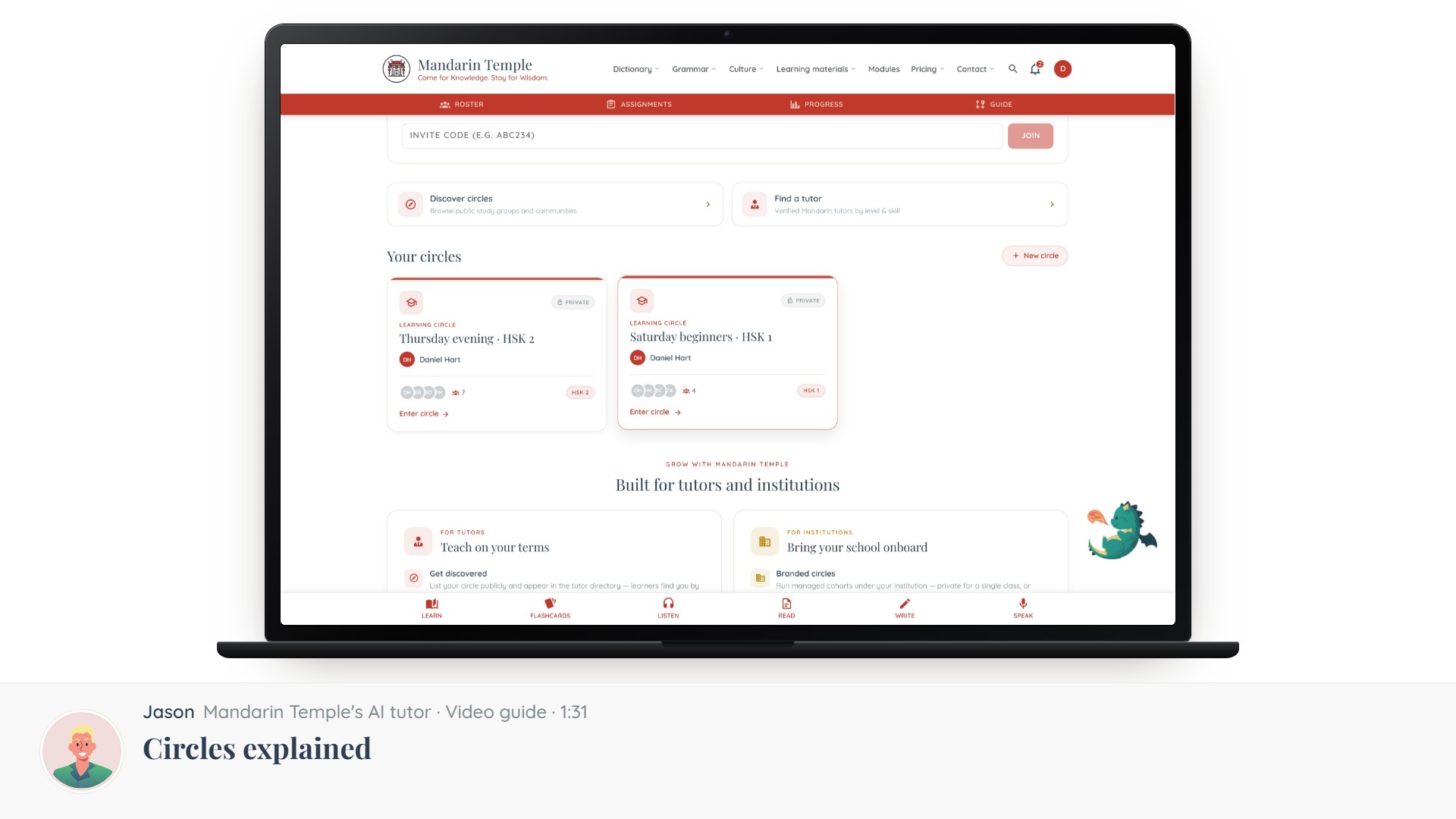 Length 1:31Circles explainedThe five kinds of circle, which one you want, and what visibility actually controls.Circles
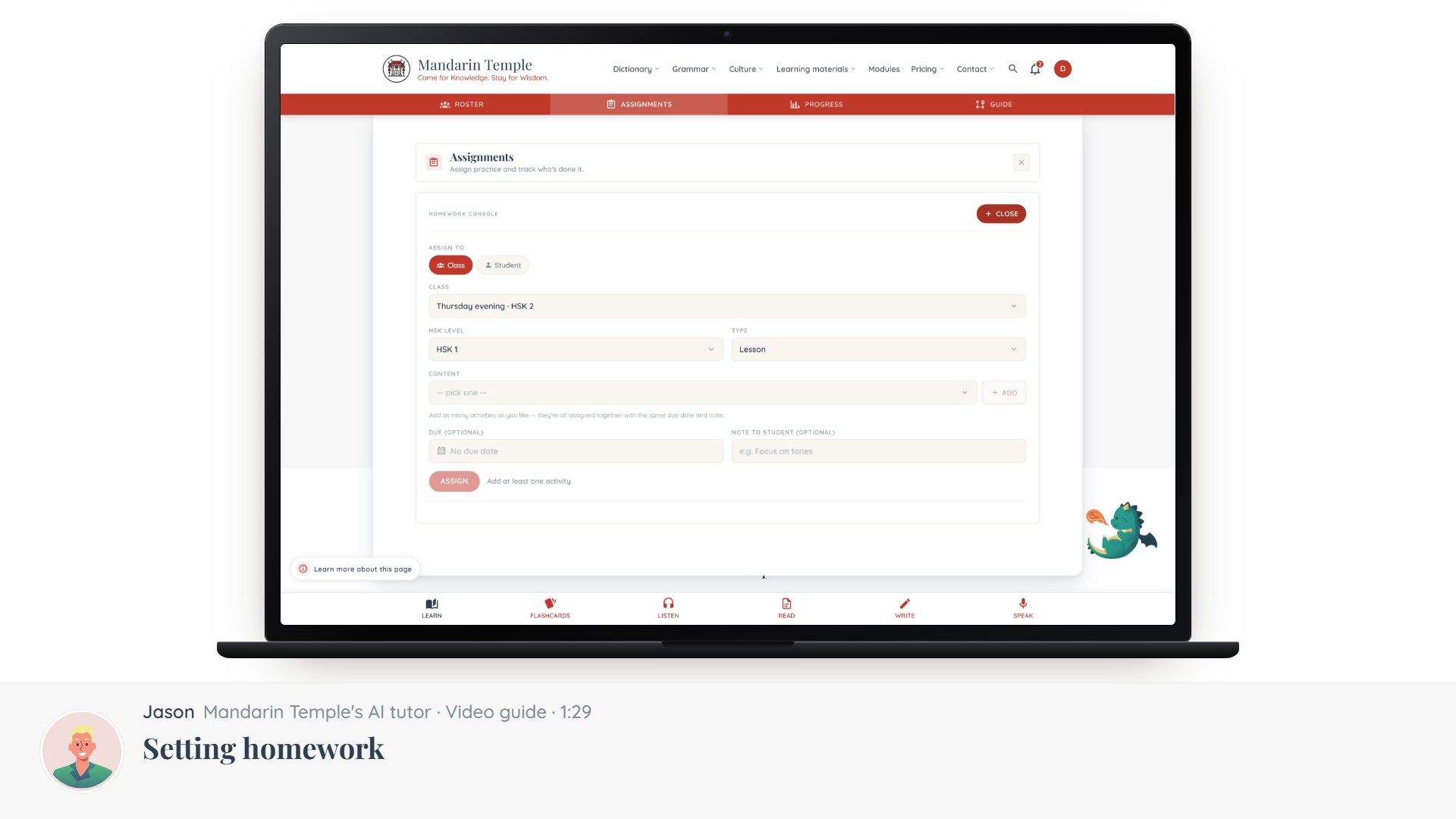 Length 1:29Setting homeworkAssign a lesson, a reading, a mock exam or a word list — to a whole circle or one learner.Assignments
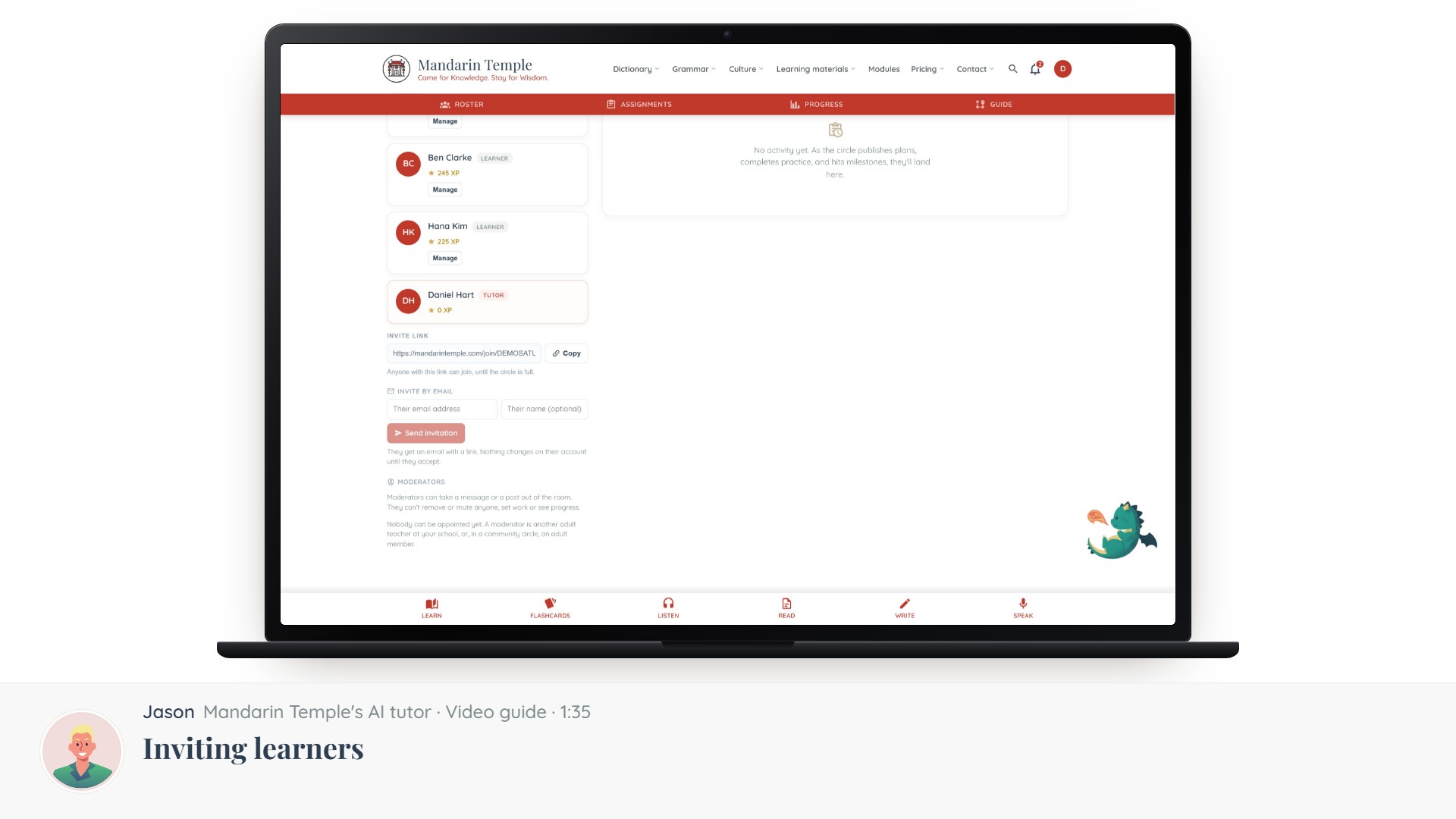 Length 1:35Inviting learnersInvite codes, links and email invitations — and what a learner sees when they accept.CirclesInvite links
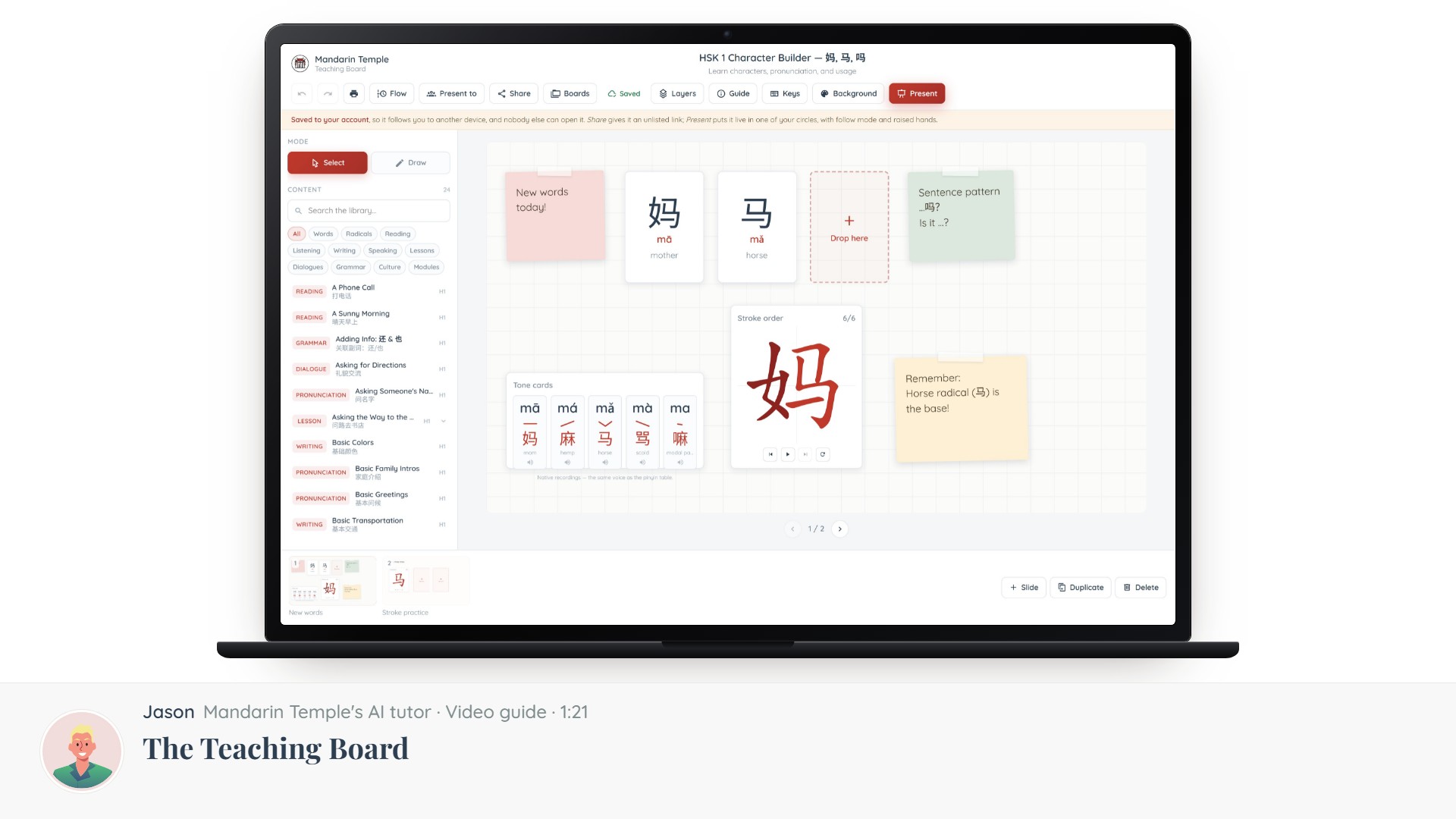 Length 1:21The Teaching BoardA slide editor built for Chinese: what it is, what is on the screen, and how to get a lesson onto it.Teaching Board