
The left-hand column of the Teaching Board searches the whole platform — the dictionary, every HSK lesson, grammar points, readings, listening exercises, culture articles and the specialised modules — and puts any of it onto a slide with a click or a drag. This is the part that makes the board a Chinese board rather than a blank one, and it needs no account.
Where it is and how it works
The column sits at the top of the left rail, headed Content with a count of what it has found. It is already showing results when the board opens — it runs a search with an empty box — so there is something to drag before you have typed anything.
- Type into “Search the library…” — Results refresh a fifth of a second after you stop typing. The magnifier turns into a spinner while it is looking.
- Or narrow by tab first — The pills under the box are the corpora: All, Words, Radicals, Reading, Listening, Writing, Speaking, Lessons, Grammar, Culture, Modules — and Dialogues if you hold a teaching seat.
- Click a result to place it — The card lands at the first free spot on the current slide and flashes briefly so you can see where it went. Nothing else opens; the card arrived complete.
- Or drag it exactly where you want it — Press and pull. After a few pixels a ghost follows your pointer, sized to the card’s real footprint once it is over the slide. Release to drop. Escape cancels.
- Or drop it into a Section — Drag over a Section container and it lights up; release and the card becomes part of that section, which lays it out for you.
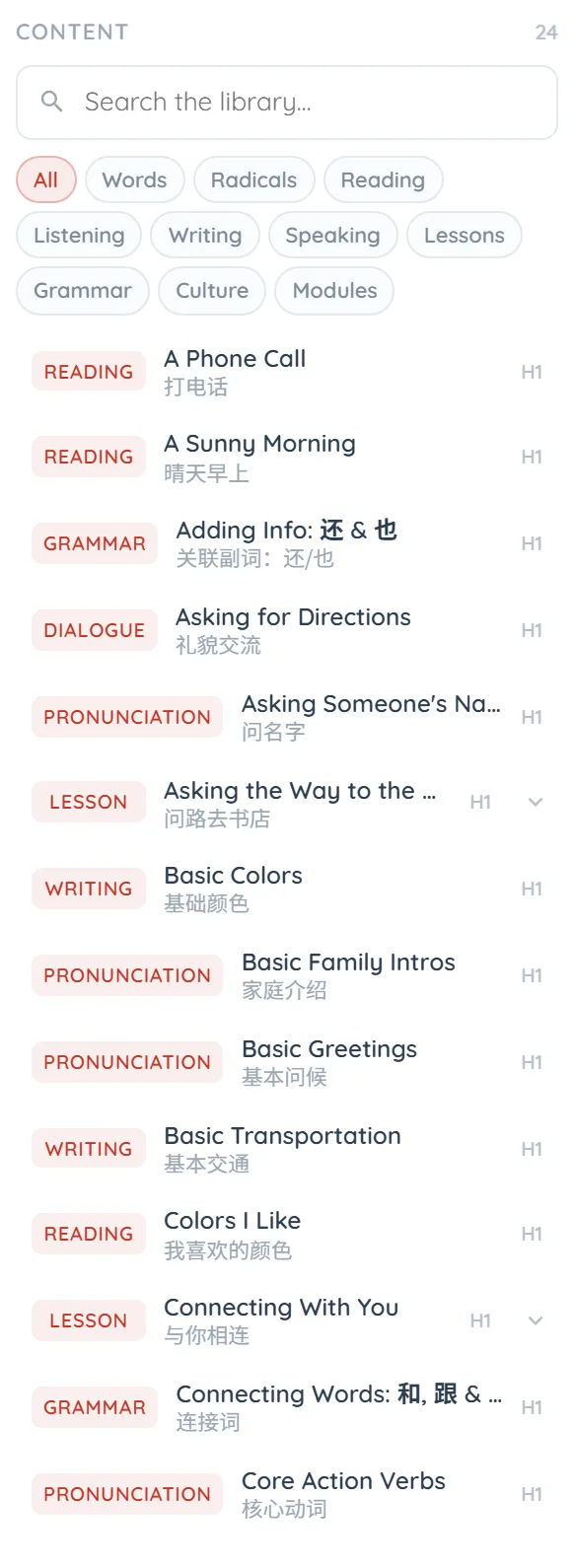
What is in there
- Words — The whole dictionary — 21,000+ entries. Browse it.
- Radicals — All 214 Kangxi radicals. These are held in the page itself, so they keep working even if the library is unreachable.
- Lessons — Every HSK lesson, HSK 1 to 7–9, addressable whole or by section. Browse them.
- Grammar — Every grammar point, with the same structure the grammar page shows. Browse them.
- Reading, Listening, Writing, Speaking — The four practice corpora — reading passages, listening exercises, writing tasks and pronunciation lessons. The badge on a Speaking row reads *Pronunciation*.
- Culture — The culture articles. Browse them.
- Modules — One row per lesson of the specialised modules — business Chinese, survival Chinese and the rest.
- Dialogues — Lesson dialogues as a role-play strip, with speakers you can hide one at a time. A teaching seat only; without one, the same dialogue still goes on a slide as an ordinary card.
A card points at the content — it does not copy it
This is the most important thing to understand about the board, and it explains almost every question people ask afterwards.
When you drag a lesson, a reading or a grammar point onto a slide, the slide stores which piece of content it is — not the content. The body is fetched when somebody looks at the slide, and it is fetched for that person, under the same rules their own account would get on the lesson’s own page.
- It stays correct — If the lesson is edited, your slide shows the edit. Nothing goes stale, and there is no “update this card”.
- It respects who is looking — You see the passage. A free learner holding your share link sees the title, the level and the line “Included with Pro.” Nothing paid is ever written into a board document, which is why a link can be handed out safely.
- It can become homework — Because the card names real content, the slide can be set as an assignment that marks against a learner’s actual progress. See Sharing, printing and homework.
- The exception is a Character card — A word or a radical from the dictionary is copied — hanzi, pinyin and meaning are written onto the card. That is deliberate: the dictionary is free, and a character card should still draw when the network does not.
One section of a lesson, not the whole thing
A whole HSK lesson is usually too much for one slide. Press the chevron at the right of a Lessons row and ten section chips open underneath it: Podcast, Understanding, Dialogue, Vocabulary, Teacher’s Notes, Grammar, Culture, Writing, Exercises and Mastery Mission. Pick one and the card addresses that section alone.
You can also change your mind later: select a placed card and the rail becomes its settings, where a Section menu offers *Whole lesson* plus the same ten. The Label field beside it renames the card on the slide without changing what it points at.
The other way in: straight from the page you are reading
You do not have to start at the board. Every dictionary entry, every grammar point and every HSK lesson carries a Teaching this? band with a Put on a board button. Press it and the board opens with that card already on the slide.
On a lesson page the band also offers four chips — Dialogue, Vocabulary, Grammar, Exercises — so *“put the exercises of this lesson on a board”* is one click from the lesson itself. On a single-character dictionary entry it offers the board and the free stroke-order tool beside it.
Common questions
No. The search is public and every row can be placed on a slide signed out. What you get back when the card resolves is the free view — the dictionary, grammar and culture open in full; paid lessons and passages show their title and “Included with Pro”.