For tutors · video guide
Circles explained — video guide
The five kinds of circle, which one you want, and what visibility actually controls.
 Presented by Jason, Mandarin Temple's AI tutor · 1:31
Captions are part of the picture, under Jason. The full transcript is below.
Read the transcript
- Hi, I’m Jason, Mandarin Temple’s AI tutor. A circle is your class on Mandarin Temple. Here’s how to start one, shown on a demonstration teacher’s account.
- All your circles are on one page. Each card shows what kind it is, its level, and who’s in it.
- Select New circle for a short form. For a class you teach, choose a Learning Circle, the kind built for teaching.
- It’s private by default, with a roster, assignments and a shared timeline. A Community Circle is an open topic space instead.
- Give it a name and, if you like, an HSK level and a sentence about what it’s for.
- Private means invite-only and out of the directory. You can make it unlisted or public instead.
- Creating a circle costs fifty credits, and the form says who pays: a school’s class uses the school’s balance first.
- Here’s one already running: its members, and a timeline of the circle’s milestones.
- And because it’s a Learning Circle, it opens straight into the Learning Lab, where you follow each learner’s progress.
- That’s a circle: one place for your class, its homework and its progress. Next, bring your learners in.
In this video
- 0:00Introduction
- 0:12All your circles are on one page
- 0:20Select New circle for a short form
- 0:29It’s private by default, with a roster, assignments and a shared…
- 0:39Give it a name and, if you like, an HSK level and a sentence about…
- 0:46Private means invite-only and out of the directory
- 0:54Creating a circle costs fifty credits, and the form says who pays: a…
- 1:05Here’s one already running: its members, and a timeline of the…
- 1:11And because it’s a Learning Circle, it opens straight into the…
- 1:19What to do next
Prefer to read it?
The written guide covers the same ground, with every step and the questions people ask.
Circles explainedMore video guides
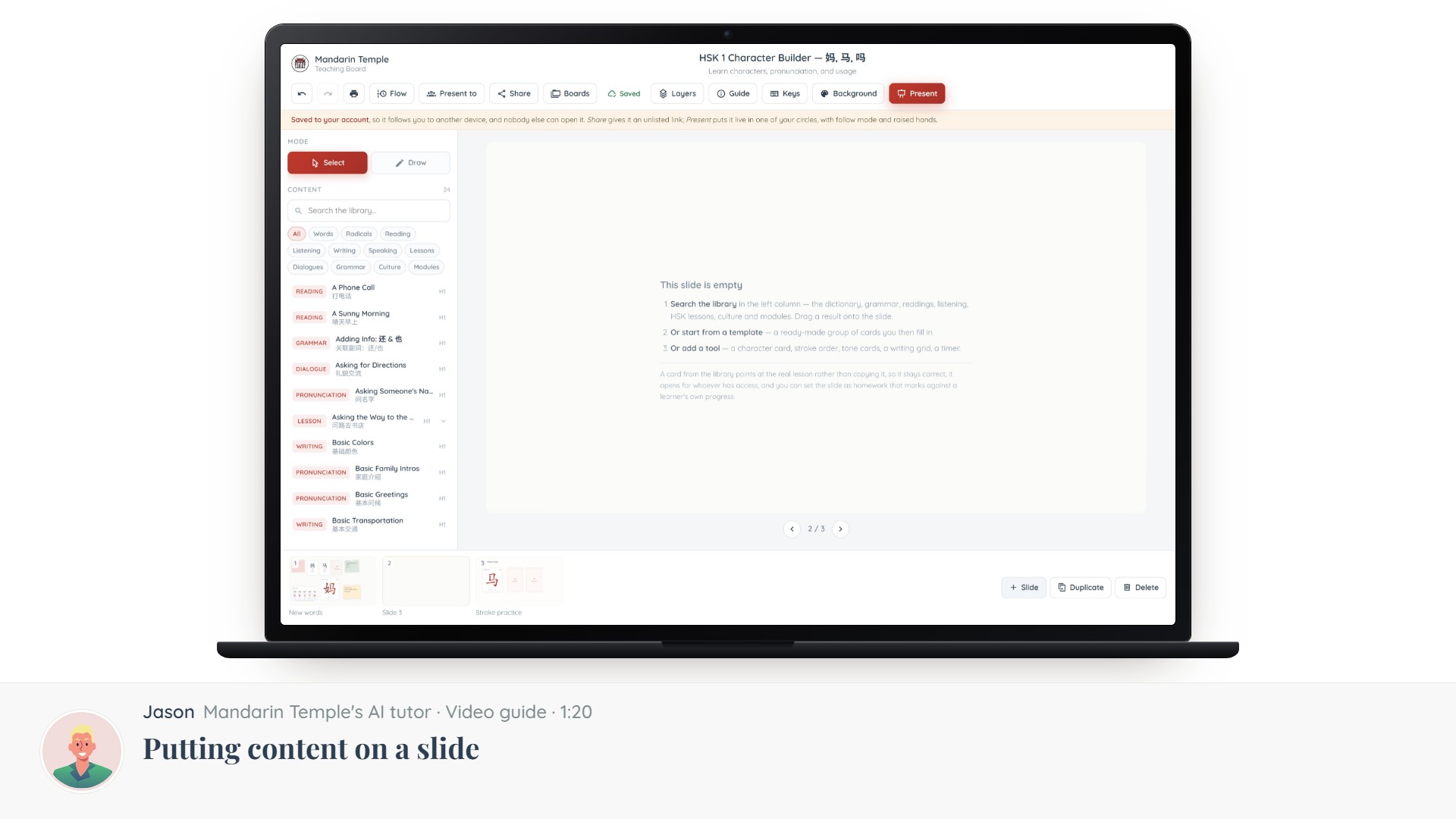 Length 1:20Putting content on a slideThe Content column: searching 21,000+ dictionary entries, HSK lessons, grammar and readings, and dragging one onto a slide.Teaching BoardContent library
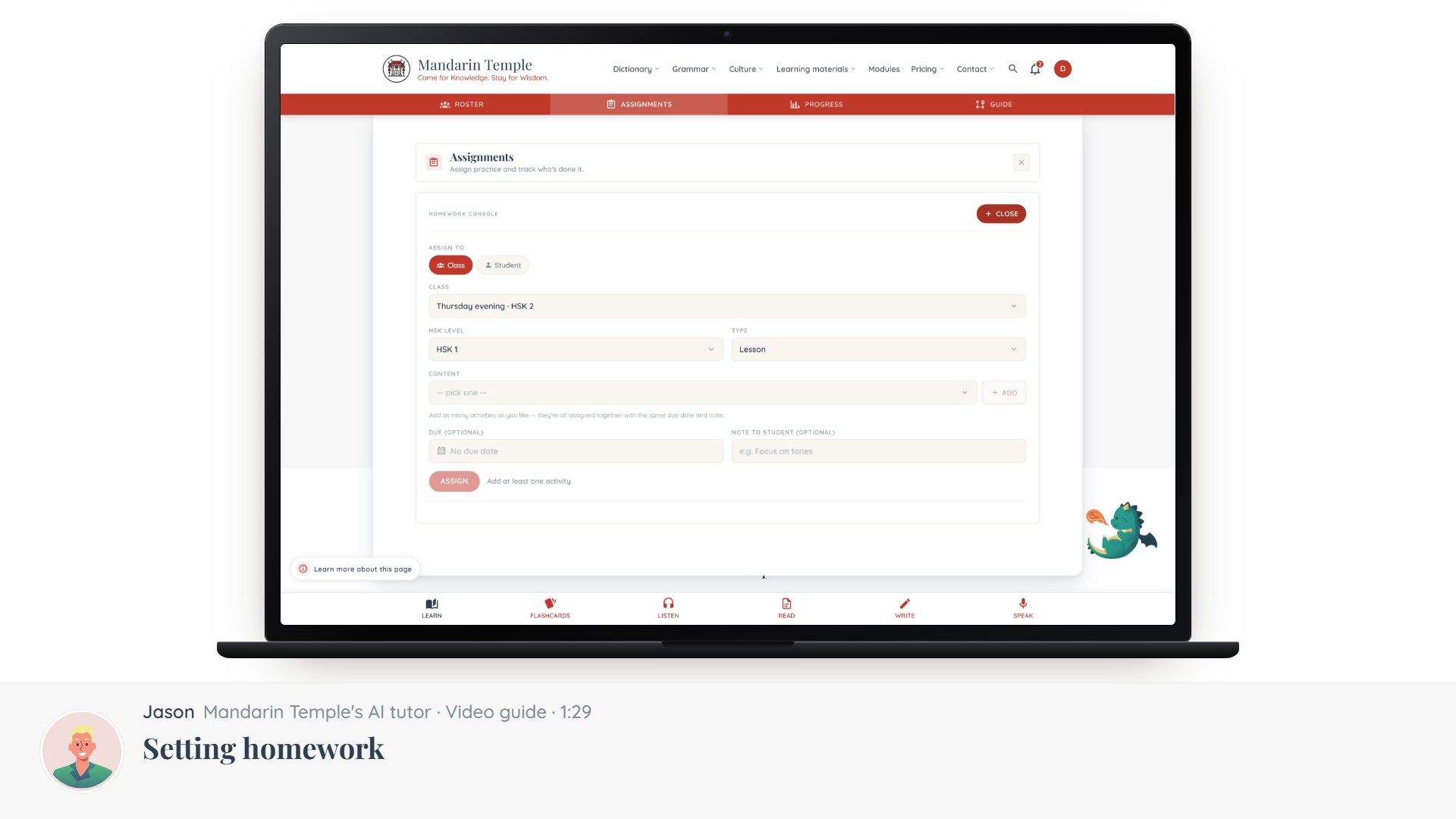 Length 1:29Setting homeworkAssign a lesson, a reading, a mock exam or a word list — to a whole circle or one learner.Assignments
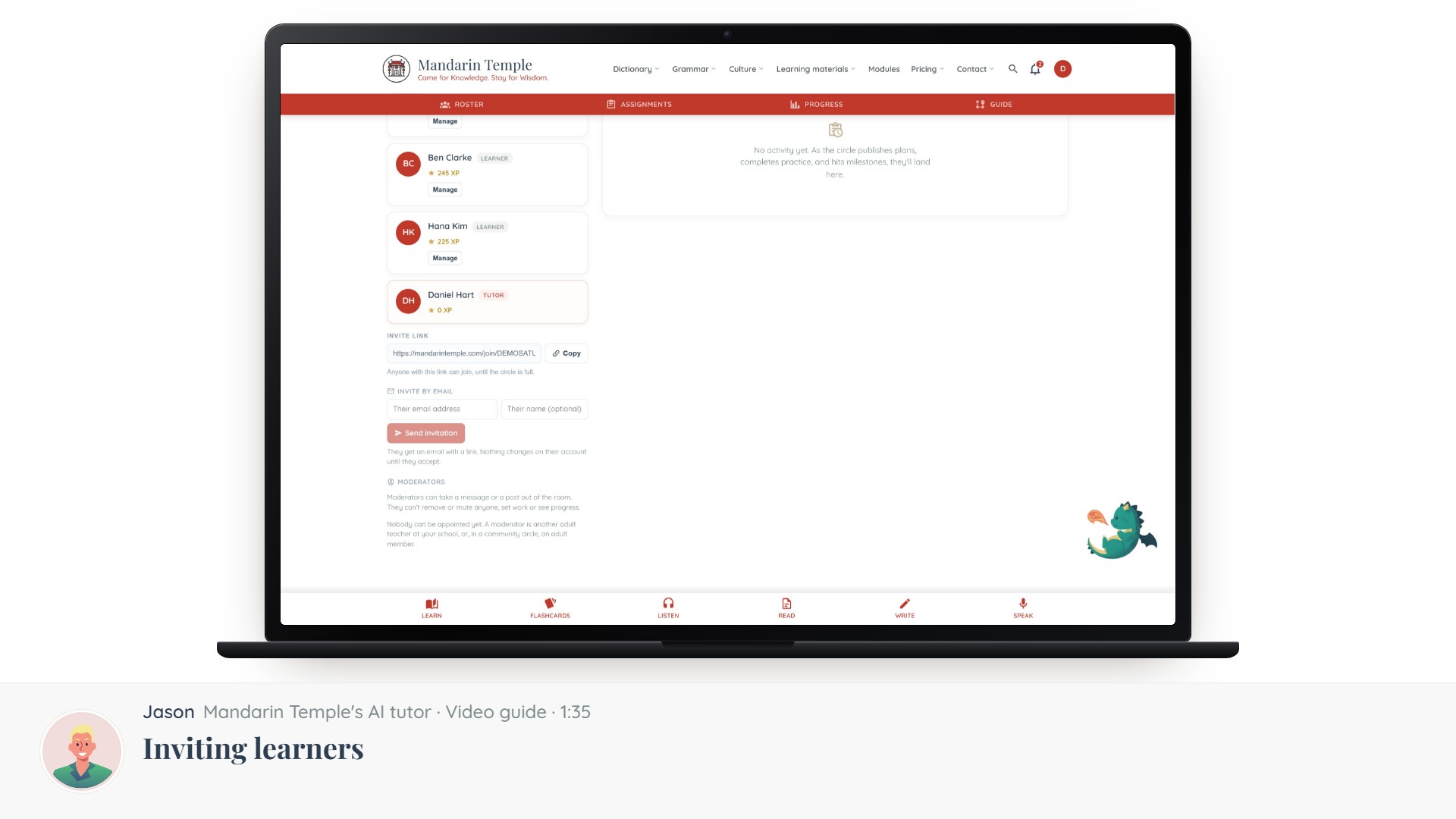 Length 1:35Inviting learnersInvite codes, links and email invitations — and what a learner sees when they accept.CirclesInvite links
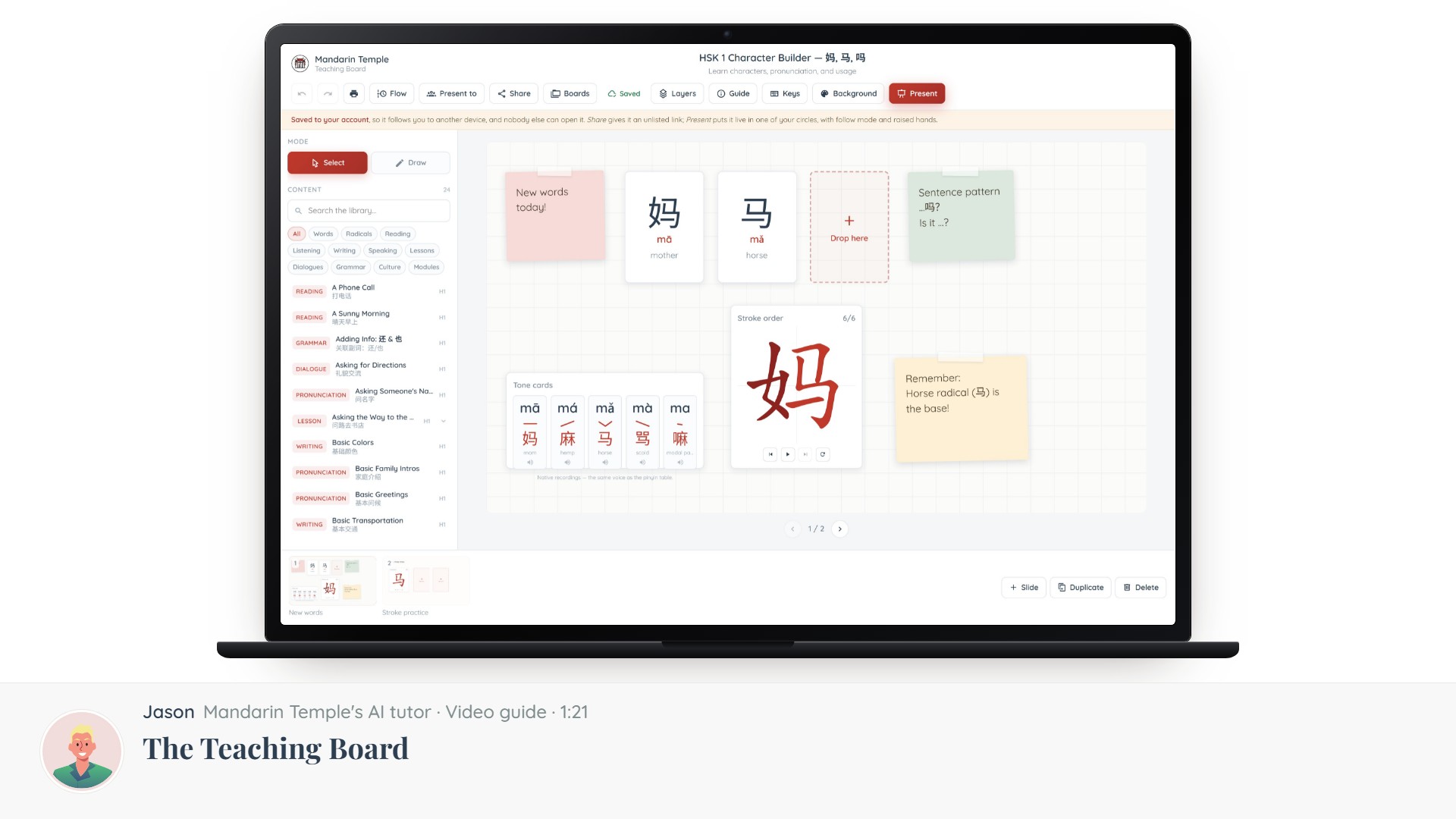 Length 1:21The Teaching BoardA slide editor built for Chinese: what it is, what is on the screen, and how to get a lesson onto it.Teaching Board