
21 of the Teaching Board’s instruments are also pages of their own — full screen, free, and needing no account at all. Open one, type a character, and share your screen. They are the fastest way to put one thing in front of a class, and the easiest thing to send a learner who will not sign up for anything.
Without a plan: Every tool page, with no account
The badge on a tool is about putting its widget on a board of your own, not about opening the page.
All of them
Grouped the way the hub groups them: what each costs is about putting the widget on your own board, never about opening the page. Every page below is free, with no account, including the three whose board widget needs a teaching seat.
- Character card — One character, filling the screen, with its pinyin and meaning. Open it.
- Word bank — Today’s vocabulary in one list, character, pinyin and meaning. Open it.
- Timer — A countdown the whole room can see. Open it.
- Text — Anything you type, as large as the screen allows. Open it.
- Sticky note — A note on screen, in one of six colours. Open it.
- Shape — An arrow or a box, for pointing at things. Open it.
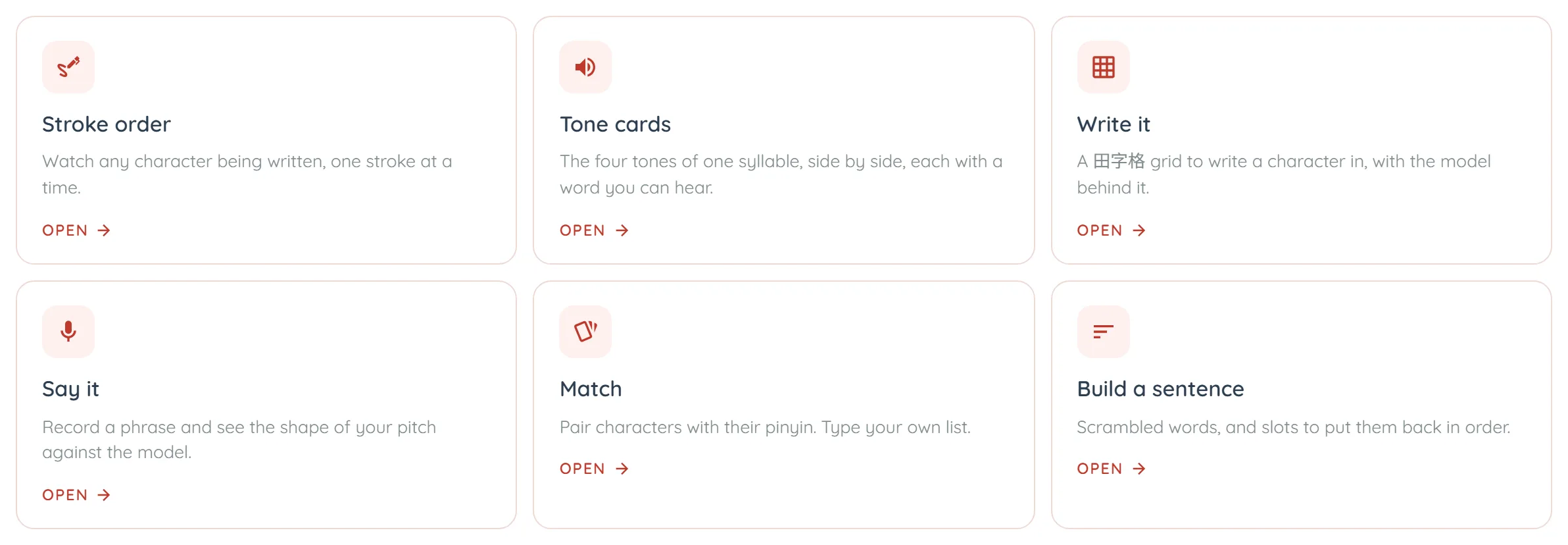
- Stroke order — Watch any character being written, one stroke at a time. Open it.
- Tone cards — The four tones of one syllable, side by side, each with a word you can hear. Open it.
- Write it — A 田字格 grid to write a character in, with the model behind it. Open it.
- Say it — Record a phrase and see the shape of your pitch against the model. Open it.
- Match — Pair characters with their pinyin. Type your own list. Open it.
- Build a sentence — Scrambled words, and slots to put them back in order. Open it.
- Pinyin table — Every syllable Mandarin uses, one initial at a time, each one audible. Open it.
- Radical table — The 214 building blocks of Chinese characters, grouped by stroke count. Open it.
- How it was made — The six ways a Chinese character is built, with real examples of each. Open it.
- Number — Any number, written and said the Chinese way. Open it.
- Fill the blanks — A sentence with words taken out, for the class to put back. Open it.
- Drop zone — A labelled slot with one character in it. Open it.
- Random picker — Picks a name, without picking the same one twice. Open it.
- Scoreboard — Team points, kept where everybody can see them. Open it.
- Quick check — One question, a few options, and an honest count of the room. Open it.
The address bar is the save button
This is the thing to know, and it is not obvious. Everything you set goes into the URL. Type 永 into the stroke-order tool and the address becomes …/stroke-order?char=永. Nothing is stored anywhere; the link *is* the setup.
So the way to keep a tool ready for tomorrow is to bookmark it, and the way to send it to a learner is to copy the address. There is no copy-link button because there is nothing for it to do that Ctrl+L does not.
- Bookmark the set-up one — A Match page with your week’s vocabulary already in it is one bookmark. Ten weeks is ten bookmarks.
- Paste it into the lesson chat — It opens for them with no account and nothing to install, on a phone as well as a laptop.
- Put it in your notes — The link survives — it is not tied to your account, so a colleague can use it too.
Using one in a lesson
- The controls are above the instrument — Always in the same place, in a bordered card, so you are never hunting for them with a class watching.
- Type Chinese without a Chinese keyboard — Character fields take pinyin and offer the characters as you type. Under the field, the tool reads back what it understood —
永 yǒng · forever · HSK 6— with its homophones as one-tap chips, in case the one you picked was not the one you meant. - “Using it” — Every tool has a panel explaining what its own controls do and one or two ways to teach with it. Written per tool, not boilerplate.
- Focus Mode — Clears the page down to the instrument and puts a chosen scene behind it. Note it is a page shell rather than your browser’s own full screen, so the browser chrome stays — press F11 as well if you want the lot gone.
- Save to a board — Signed in, one button turns the tool into a new board holding that widget, ready to build a lesson around. Signed out it reads *Sign in to save it*. Creating a board spends 50 AI credits.
A tool or the board?
- A tool, when you want one thing now — No account, no setup, nothing to save. Best for a moment inside a lesson — a character someone asked about, a tone nobody can hear.
- The board, when you want a lesson — Several instruments on one slide, several slides in order, real lessons and grammar dragged in from the library, and the ability to present it or set it as homework.
- And they meet — Save to a board turns a tool into the start of a deck; and a board’s widget library holds these and more.
Common questions
Neither. All 21 pages are completely open — every control, the pinyin input, the recording in Say it, and Focus Mode with all of its scenes. An account adds exactly one button, Save to a board. The tier badge on a tool describes the board widget behind it, not the page: even the three marked **Teaching seat** open here for anyone.