
A board is a deck: an ordered run of 16:9 slides, each holding cards and, if you draw on it, ink. This is how the deck itself is built — the six ready-made lessons you can start from, adding and duplicating slides, the six templates, the six backgrounds, and what happens to your work between one visit and the next.
Six ready-made lessons
Before anything else: you do not have to start from a blank board. Signed in, press Boards → New board and you are asked what kind — a blank one, or one of six complete lessons.
A layout is a whole deck. Four to six slides in teaching order, real Chinese on every one, and a Lesson Flow rail with the minutes already against each stage. You can teach one as it stands; the point is that you swap the words for your own.
- First lesson — The trial lesson with a brand-new student: a greeting they can say back in two minutes, their own name in characters, the four tones, and one character written. About 30 minutes.
- New words — Present a vocabulary set, drill it, then make the class produce it. Family words at HSK 1. About 45 minutes.
- One grammar point — 的 for who owns what — three examples before any rule, then a substitution drill, then free production. About 45 minutes.
- Character writing — Three characters that share 女, taken apart, watched being written, then written in a full-slide 田字格. About 40 minutes.
- Speaking and tones — A pronunciation clinic built on the two widgets that can settle a tone argument — tone cards and the pitch recorder. About 30 minutes.
- Review and check — Recall before recognition: the class produces from memory against a clock before the word list appears at all. About 40 minutes.
Slides
Every slide in the deck sits along the bottom of the board in a filmstrip, with three buttons beside it.
- Slide — Adds a new slide directly after the one you are on, named *Slide N*. Not at the end — where you are is where it goes.
- Duplicate — Copies the current slide, cards, ink and all, and names it *“<title> copy”*. The fastest way to build a drill: make one slide properly, then duplicate it four times and change the word.
- Delete — Removes the current slide. Undo brings it back.
- Naming — Type under a thumbnail to name a slide. The name is for you — it shows in the filmstrip and in Lesson Flow, and it is not printed and not shown to a class.
The six templates
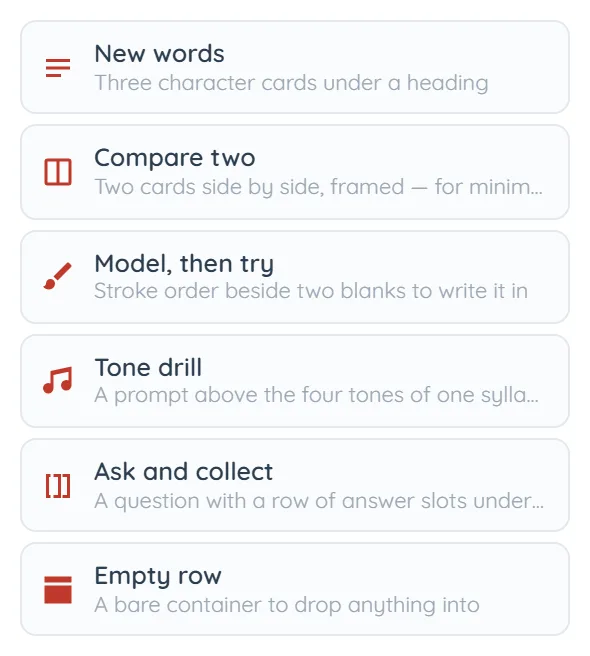
A template is a ready-made group of cards, not a page layout. Clicking one stamps it onto the slide you are on, alongside whatever is already there — so two templates on one slide is fine, and stamping one never wipes anything. Drag instead of clicking to put it exactly where you want.
- New words — Three character cards under a heading. The workhorse: fill each one from the dictionary and the vocabulary slide is done.
- Compare two — Two cards side by side in a frame, headed *“Which one?”* — built for minimal pairs, the 四 / 十 problem.
- Model, then try — A stroke-order animation beside two blank slots labelled *Your turn* and *Again*. Watch it, then write it.
- Tone drill — A prompt above the four tones of one syllable — *“Listen, then say it back.”*
- Ask and collect — A question with a row of three answer slots underneath, for taking answers from the room.
- Empty row — A bare outlined container to drop anything into. Use it when you want cards to stay lined up as the slide resizes.
Backgrounds
Press Background in the header and pick one of six. It applies to the slide you are on, one slide at a time — there is no deck-wide theme, and every new slide starts on Paper.
- Paper — Plain and light. The default, and the right answer most of the time.
- Grid — A light squared grid, for lining things up by eye.
- 田字格 — The four-quadrant character grid, full slide. For a handwriting slide where the whole board is the practice sheet.
- Rice — The 米字格 variant, with diagonals as well.
- Slate — Dark. Good for a projector in a bright room, and for a card you want to feel like a blackboard.
- Ink — Dark and warmer. The same idea with a different temperature.
Saving, undo, and the one case that needs you
There is no Save button. Changes are written locally almost immediately and pushed to your account a second or so later, per slide rather than per deck. The chip beside the toolbar reports it: This browser, Checking…, Saving…, Saved, Offline, Conflict.
- Undo and redo — Ctrl+Z and Ctrl+Shift+Z, thirty steps deep, over the whole deck — including ink, and including an *Arrange* that moved every card at once. Typing collapses into bursts, so one undo takes back a sentence rather than a letter.
- “Offline” — A save did not land. It keeps trying. Keep working, but do not close the tab on something you cannot rebuild.
- “Conflict”, and a Reload button — The same board was changed elsewhere — another tab, another device, yesterday’s window you forgot about. Autosave stops rather than choosing a winner. Reload asks first and puts a copy of your current slides on your clipboard before loading the other version.
- Two people, one board — Not supported, and it fails safely rather than silently: the second writer is stopped with a Conflict. To work together, send a link or present it.
Several boards
Signed in, press Boards for the picker: every board you own with its slide count and when you last touched it, newest first. Click one to open it, or New board at the foot. You can hold up to 200, and each one costs 50 AI credits to create — deleting it does not give them back.
A board is renamed by editing its title while it is open, not from the picker. There is no “duplicate this board”: the nearest thing is opening your own share link and pressing Save a copy, which makes a new board from it.
Signed out, there is no picker — you have exactly one deck, kept in that browser.
Common questions
You cannot, yet. Slides stay in the order they were created in. The practical workaround is to duplicate the slide at the point you want it and delete the original — a new slide is always inserted directly after the one you are on, so going to the right place first is what sets the position.